Props allow us to pass data from outside our component into the component's state. They're incredibly useful for setting default values and propagating state through different levels of our components.
Understanding Props
Props are set directly on a $props object within the state of our component. However, they are also readily available directly off the state itself, which is just called state.
To see the entirety of our component state, you can wrap it in an inspect call, which will pretty-print it on our document.
{{ inspect(state) }}Copied!
When we search for “$props”, we'll find a $props object that contains data, such as the title passed in from the higher-level component (in this case, our page). Additionally, EdgeJS places our props directly on the state object, ensuring that we have easy access to it. For instance, you can see title with the value "button" directly on our state.
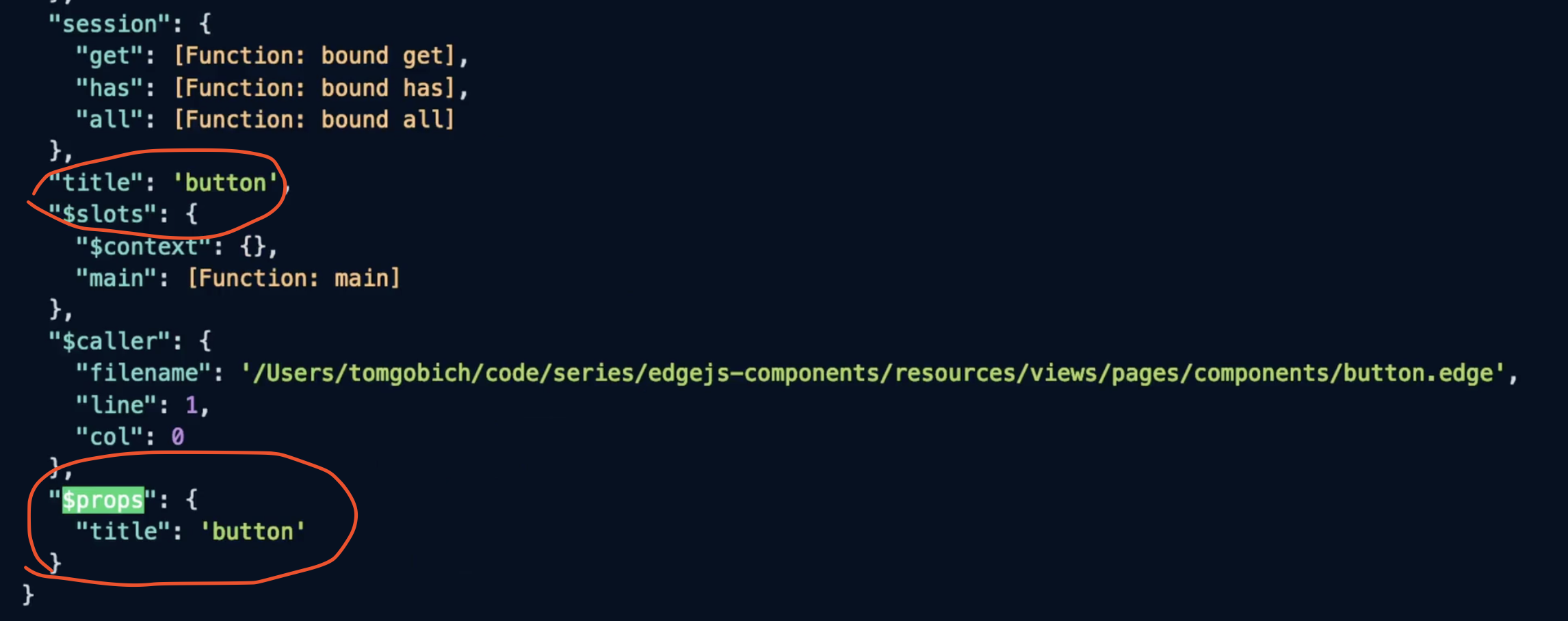
This means that when we're inside our component, we can reach for these properties directly without worrying about their existence. If a property doesn't exist, we'll simply get back undefined since we're accessing it directly from an object.
For example, if we were to remove our breadcrumbs state entirely, our usage of breadcrumbs further down would not cause an error; it would return undefined. This behavior allows us to work with props without being concerned about their presence in the state.
-- @set('breadcrumbs', false) <header x-data="{ breadcrumbs: {{ breadcrumbs }} }" class="bg-gray-100 p-6 -mx-6 mb-6 rounded-md"> @if (title != 'Home') <a x-show="breadcrumbs" href="/" class="text-xs" @click.prevent="breadcrumbs = false"> Home </a> @endif <h1 class="text-2xl font-bold">{{ titleCase(title) }}</h1> </header>Copied!
- resources
- views
- components
- layouts
- app.edge
Passing Props into Components
If we jump back out to our button page, you’ll see this is where we’re passing in that title prop that displayed earlier when we inspected our props.
@layouts.app({ title: request.params().name }) <h3 class="font-bold">Base Button</h3> <div class="mb-8 space-x-3 space-y-3"> Button goes here </div> @endCopied!
- resources
- views
- pages
- components
- button.edge
Along with that title, we can also add breadcrumbs: true.
@layouts.app({ title: request.params().name, breadcrumbs: true }) <h3 class="font-bold">Base Button</h3> <div class="mb-8 space-x-3 space-y-3"> Button goes here </div> @endCopied!
- resources
- views
- pages
- components
- button.edge
Now, our breadcrumb will be displayed by default because this prop is passed to our component state and rendered as true in our AlpineJS state.
Using Props for Default Values
You can also use the state and prop mechanism to set a default value within the component itself. For example, if you want to default to ****true, but allow the page level to override it by setting it to false, you can do the following:
++ @set('breadcrumbs', breadcrumbs ?? true) @set('breadcrumbs', false) <header x-data="{ breadcrumbs: {{ breadcrumbs }} }" class="bg-gray-100 p-6 -mx-6 mb-6 rounded-md"> @if (title != 'Home') <a x-show="breadcrumbs" href="/" class="text-xs" @click.prevent="breadcrumbs = false"> Home </a> @endif <h1 class="text-2xl font-bold">{{ titleCase(title) }}</h1> </header>Copied!
- resources
- views
- components
- layouts
- app.edge
This code uses the nullish coalescing operator (??) to set the default value to true if breadcrumbs does not exist.
By saving and refreshing, you'll see that the breadcrumb is displayed by default. If you change the value at the page level to false and refresh, the breadcrumb will be hidden by default, matching the page-level setting.