00:08
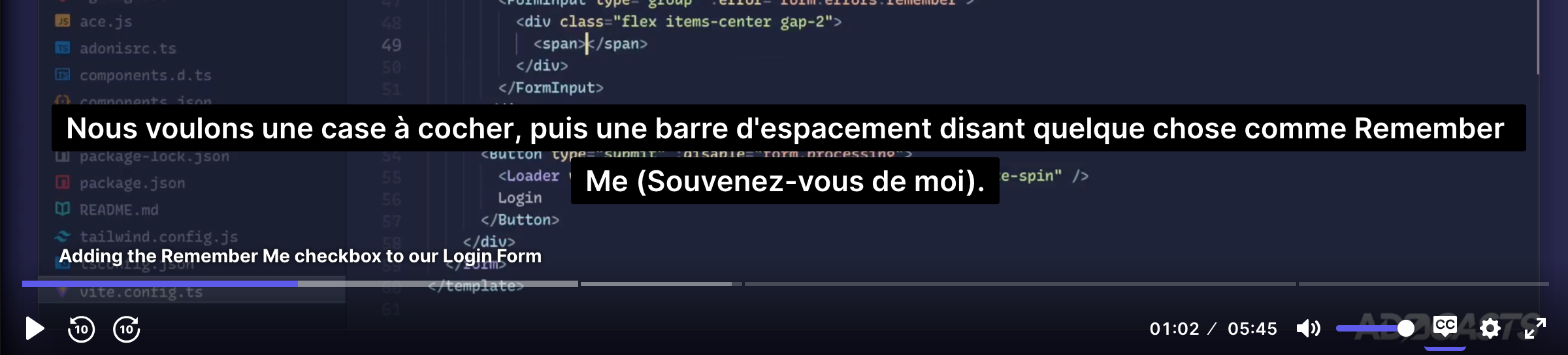
This is the Remember Me token feature. So first on our login page, let's scroll up to our form and let's add a new field. This is simply just going to be Remember, and we can default it to false,
00:17
as Remember Me option is typically an opt-in feature. Then we need the input for this new field, so we'll scroll down to underneath our password input.
00:25
We'll add a div with a class of flex-item-center justify between will allow these flex items to wrap, and it will also do a gap of four. Then we need the actual checkbox field.
00:35
Now, for this, we can alter our form input to allow a type of group. For this, we're just going to use the form input to house the label and errors,
00:44
and then the actual input itself will be defined as a child content. So for this, we'll pass in the error of form, errors, and use our remember key there.
00:54
Then for the child content, we'll want a div class flex-item-center and a gap of two. We'll want our checkbox and then a span saying something like Remember Me.
01:04
Now, I don't believe at present we have the checkbox installed. If I take a look through here, I don't see it. So let's hit Command-Shift-P, ShotCN, add new component,
01:13
and let's take a search for checkbox and get that installed. Now that that's done, we can close out. It looks like I have a number of these terminals here open. We just close them all out,
01:21
and let's add our checkbox right above our Remember Me span. So do checkbox with a view model, and this uses a named view model of checked, and then we'll pass in our form,
01:31
Remember Me binding to that, and that should do. Next, we need to alter our form input to allow this type of group. So we'll hit Command-P,
01:39
jump into our form input component there, and really all that we want to do is change this portion right there. So we'll add a slot using a VIF.
01:49
When the type equals group, we'll use the slot. Otherwise, we want to use the input. So we'll pack a VLs on the input itself. All right, that should do it.
01:57
Now we have ability to add in grouped items to our form input. If we now jump back into our browser, refresh the page, there is our Remember Me checkbox.
02:06
Next, we need to take care of the actual feature of that flag. Our first stop for that is going to be our auth validator, and on our login validator,
02:14
we just want to add that Remember Me flag into this. This will be of type find boolean, and we also want to make it optional.
02:21
We're using boolean here because the actual value is going to be sent up as a literal boolean rather than an HTML checkbox value. We shouldn't need to change anything inside of our controller
02:30
as we're passing through that validated data into our web login action. So we jump straight into our web login action where we can pass the data remember flag
02:39
as the remember flag on the login call. So data remember. Now, we need somewhere to store these Remember Me tokens, and for that, we're going to need a migration.
02:48
This is covered if we jump back into the browser, open up a new tab, go into docs.js.com, scroll down to the authentication section, and inside of the session guard,
02:57
we should be able to find using the Remember Me feature. We can scroll down into here, grab a reference to the table columns that we're going to need here, and close that back away as well as our browser.
03:07
Let's then pop into our terminal. Let's go into my empty tab here so that we can run node is make migration Remember Me token. Let's run that.
03:17
Okay. So now we have a migration for create Remember Me tokens table where we can find that inside of our database migrations, and it should be the last item in here.
03:26
Cool. For the table contents, we want to take what we copied and paste it in here, and we give that a save. Now, we need to hook this up to our user model. So we can hide our migrations and database folder back away,
03:36
scroll up to our models, and go into our user model here. We'll do static Remember Me tokens equals db Remember Me tokens provider,
03:45
and off of here, we want to call the for model and pass in our user model to that. While we have our terminal readily available, let's go ahead and just run node is migration run
03:55
so that we actually create the Remember Me tokens table there. Okay. And now we have our boilerplate for the Remember Me feature complete.
04:03
We just need to turn it on by jumping into our config and our auth config. You'll notice inside of our web guard here, the use Remember Me tokens is defaulted to false.
04:13
We can go ahead and switch that to true now. Furthermore, if we want to change the duration of the life of the token, we can set the Remember Me token age to whatever we see fit. So maybe something like two years there.
04:23
And it looks like there's a native squiggly in here. Let's hover over that and see what this is all about. So authenticators is already declared in the upper scope on line three, column 32.
04:32
So it seems to be complaining about the authenticators there whenever we imported it here. So let's just give that an alias to make everything happy. So we can rename this authenticators even,
04:41
and then we can give that name there a copy, and we just need to paste it into the InverterAuth events right there. Okay, cool. So if all's well, we should now be able to jump back into our browser.
04:50
Let's see. I think we have testuser1 at test.com, something for the password, and let's check on our Remember Me feature. Hit login, and cool. We're redirected to the homepage.
05:00
Everything seems to have worked a-okay. We can go ahead and jump into our terminal one more time. Node base REPL awaits load DB,
05:08
and then we'll await DB.fromRememberMeTokens. We're using the database module here rather than our models because we don't have a direct model for our Remember Me Tokens table,
05:18
and one's not really needed either. So we'll query directly from the database, and we should only have one. So I believe we should be able to just run that and get everything back, and there we go.
05:27
So we can see our ID is one, our tokenable ID, which is our user's ID, is one as well. Then we have the hash for the Remember Me Token, when it was created, updated, and when it will expire,
05:37
which looks to be in two years. Awesome. So everything there is working a-okay. We can go ahead and exit out of that with .exit, and now we're ready to move onward.